Useful Azure links/tools
Introduction to page and tools
I mostly use these tools regularly to check the latest Azure updates, watch service health, calculate costs, build diagrams, create documentation, run commands easily, learn new skills, and manage your resources better.
In this page, I therefore not focussed on a single category but selected some tools for multiple categories.
1. Azure Updates
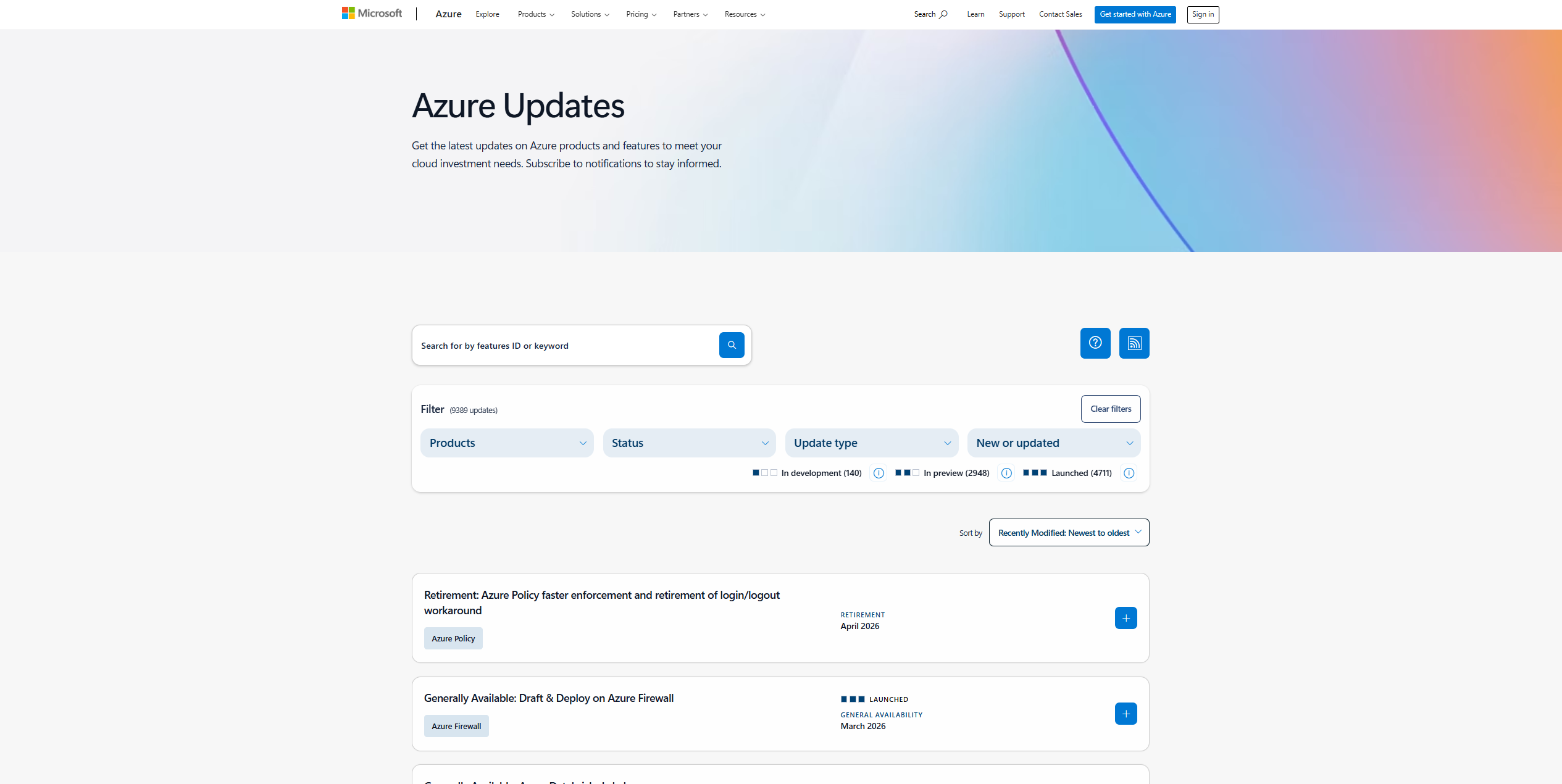
This website shows all new features, fixes, and announcements from Azure. It helps you stay informed about important changes, like retiring services or previews transitioning to generally available options.
https://azure.microsoft.com/en-us/updates
2. Microsoft Cloud Service Status (Overview/Azure)
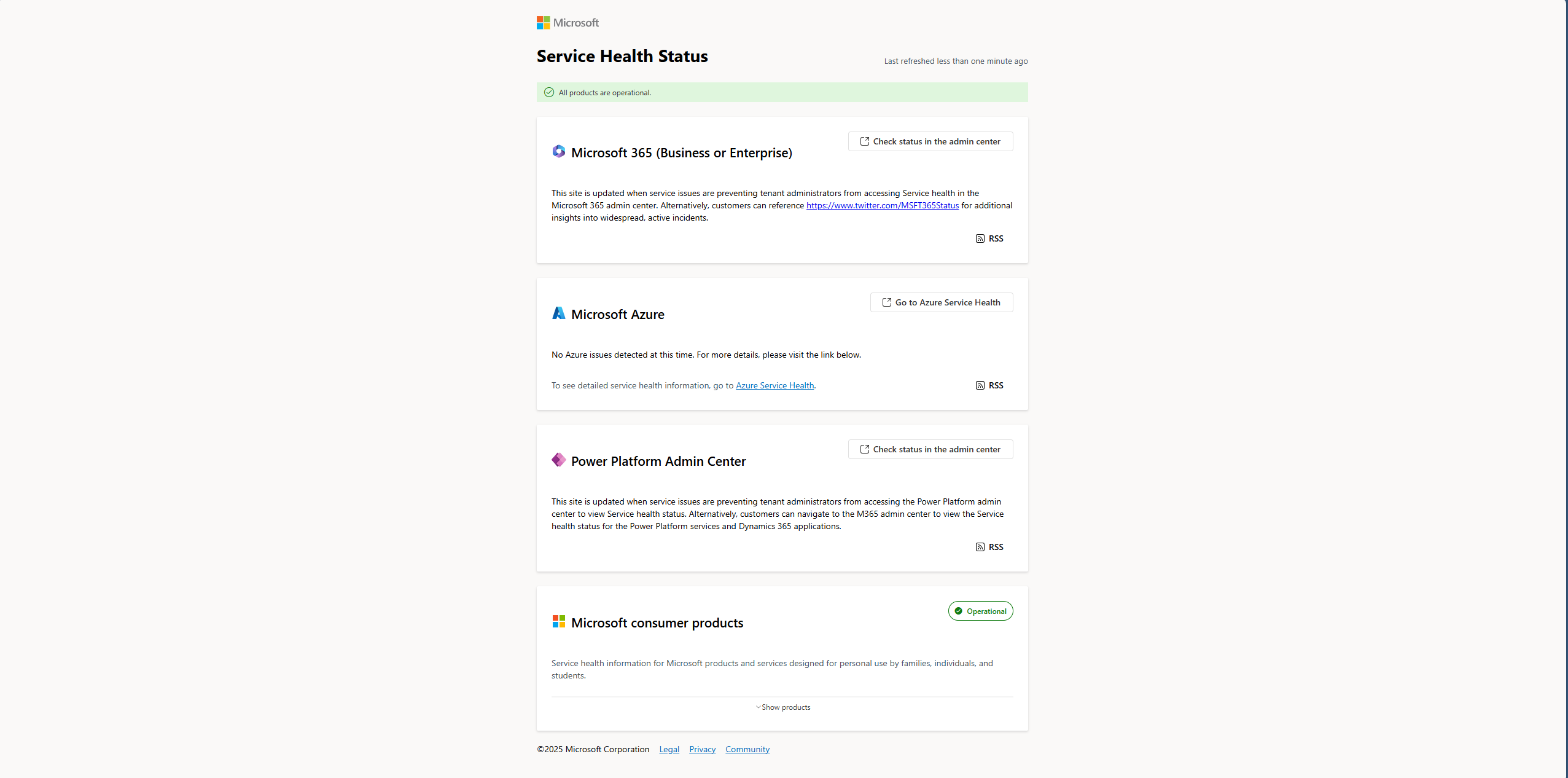
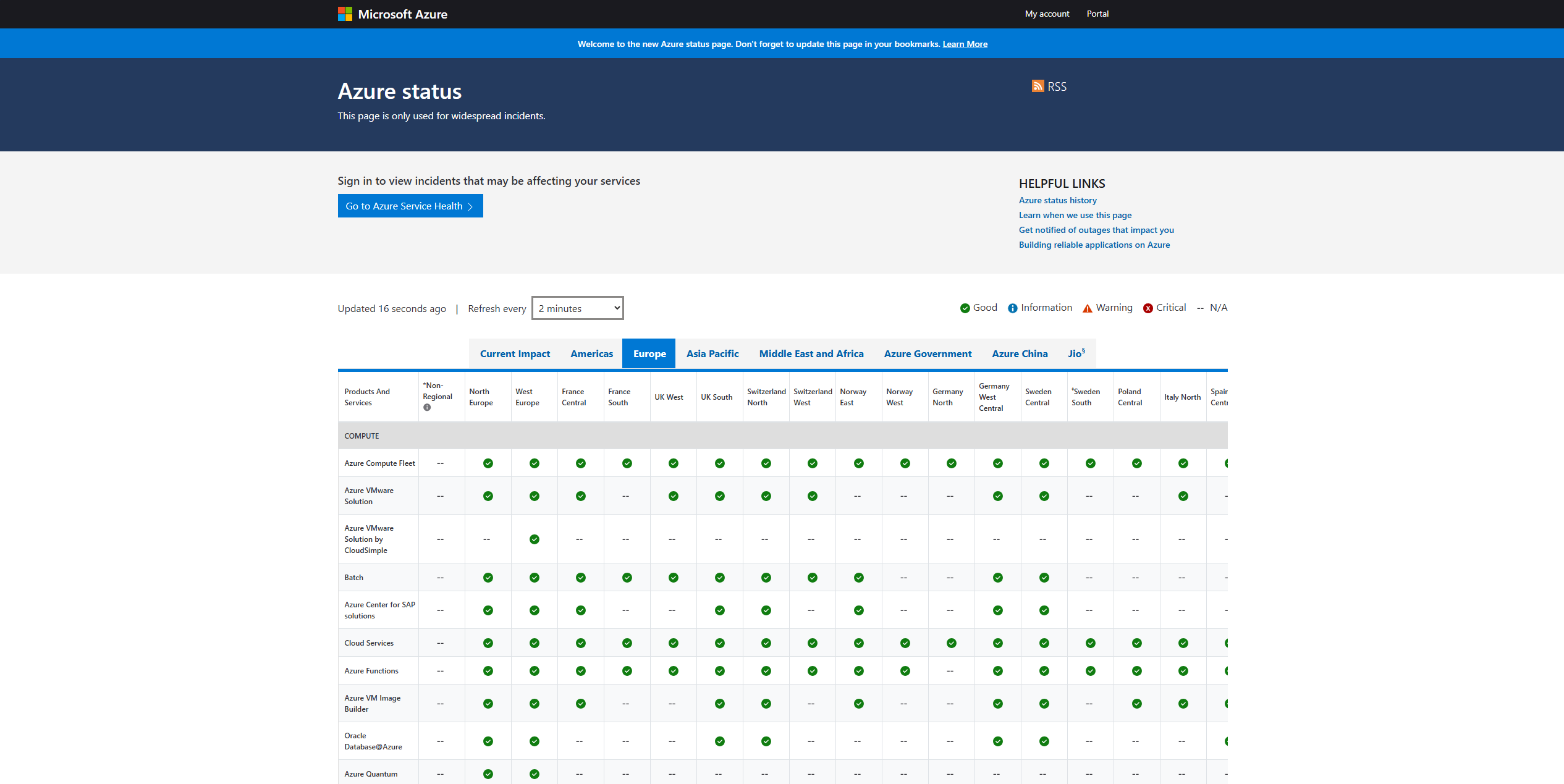
These two sites, status.cloud.microsoft.com and status.azure.com, show the current health of Microsoft cloud services. You can use the first site to get an overview of all Microsoft Services, and the Azure Status page for only Azure services.
https://status.cloud.microsoft.com
You can also check on Azure Service Health if there are any issues which impacts your environment through this link:
https://portal.azure.com/#view/Microsoft_Azure_Health/AzureHealthBrowseBlade/~/serviceIssues
3. Azure Pricing Calculator
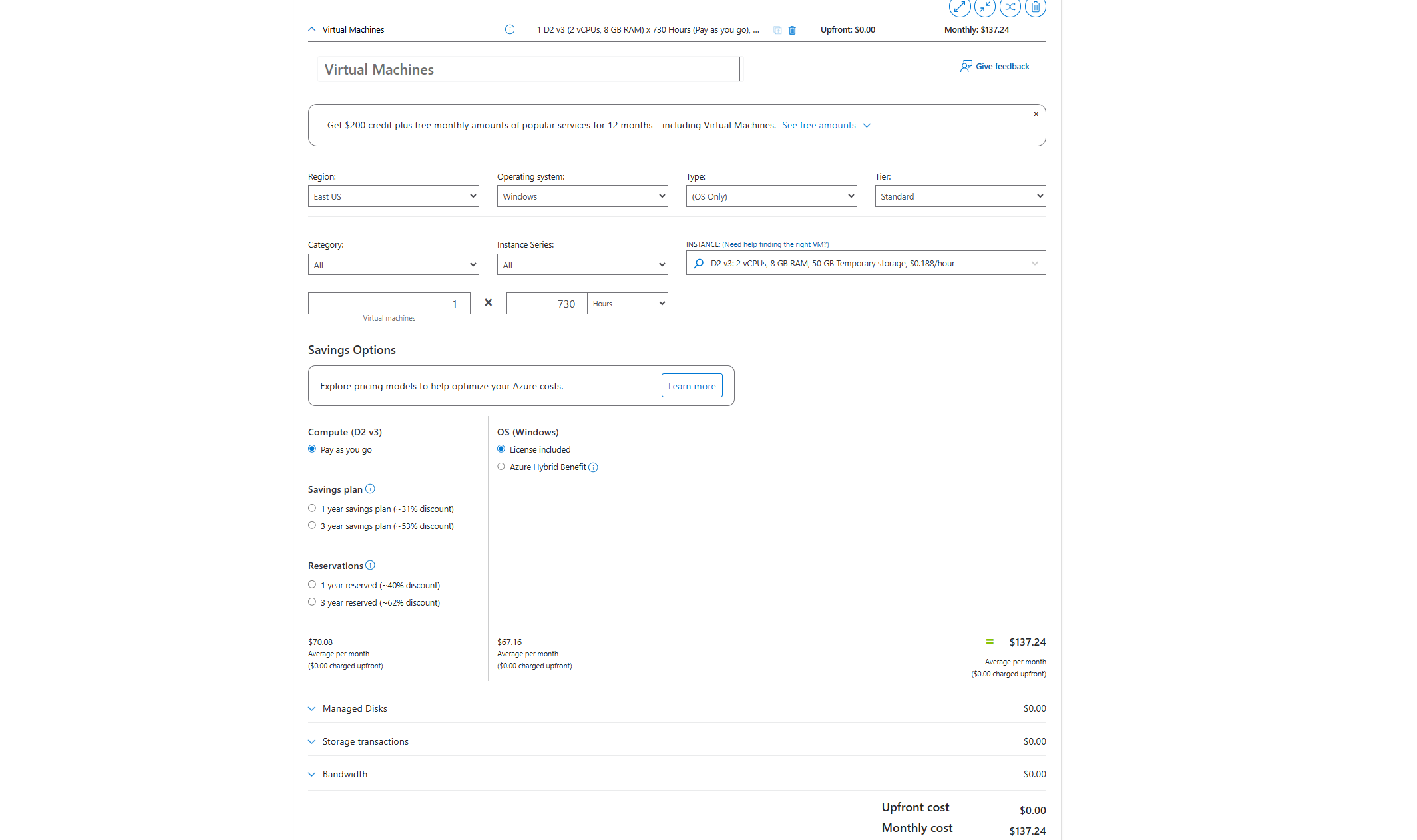
This tool helps you estimate how much your Azure services will cost. You can choose different resources and get an easy-to-understand price before building your environment. Very useful tool when designing an environment and making a quote for your customer.
https://azure.microsoft.com/en-us/pricing/calculator
4. draw.io
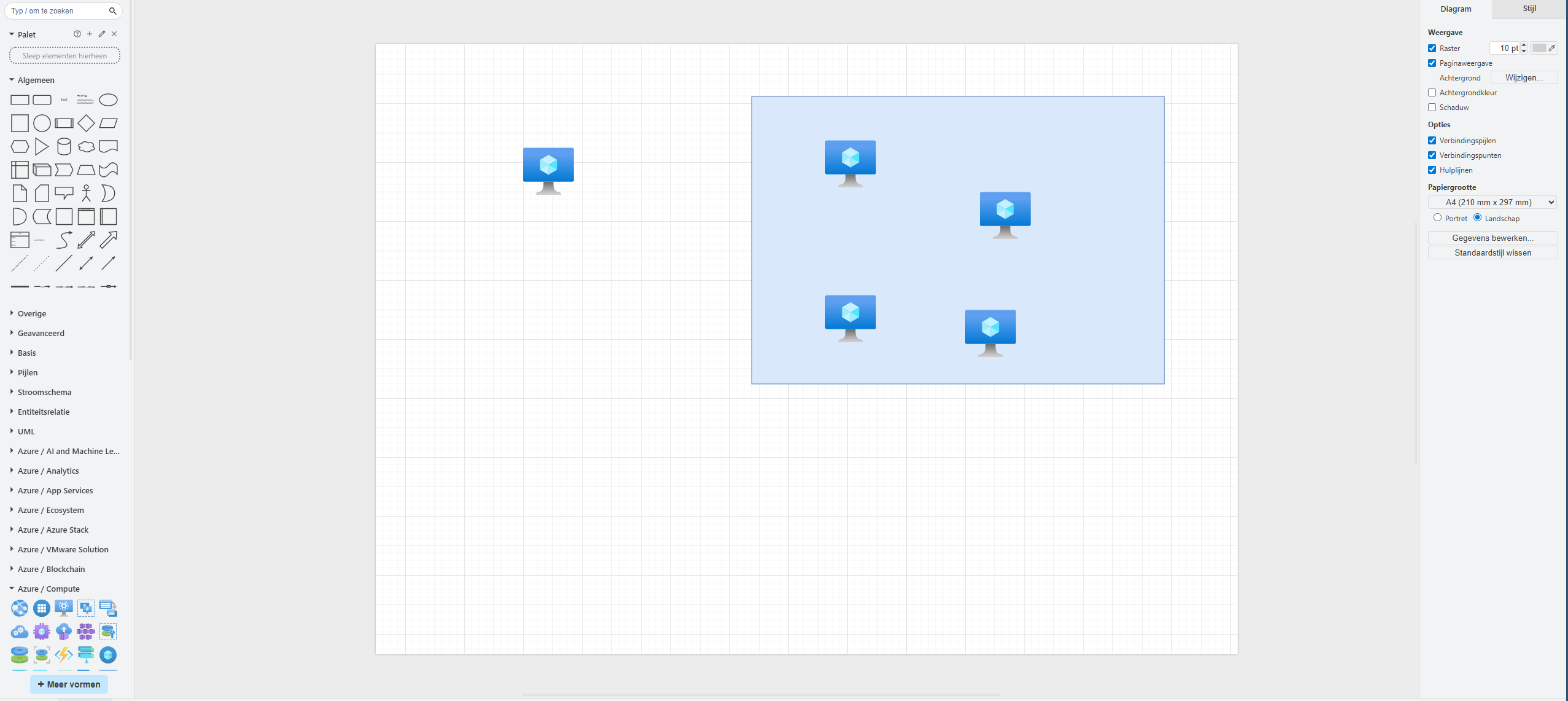
draw.io is an amazing online tool for drawing diagrams. You can create network maps, architecture diagrams, or flowcharts for your Azure environment without installing software. It has almost all icons for Azure natively built-in for easy charts and diagrams.
Every time you see a nice moving and interactive diagram on my website, I have used Draw.io to create it.
5. Microsoft Visio Azure Diagrams
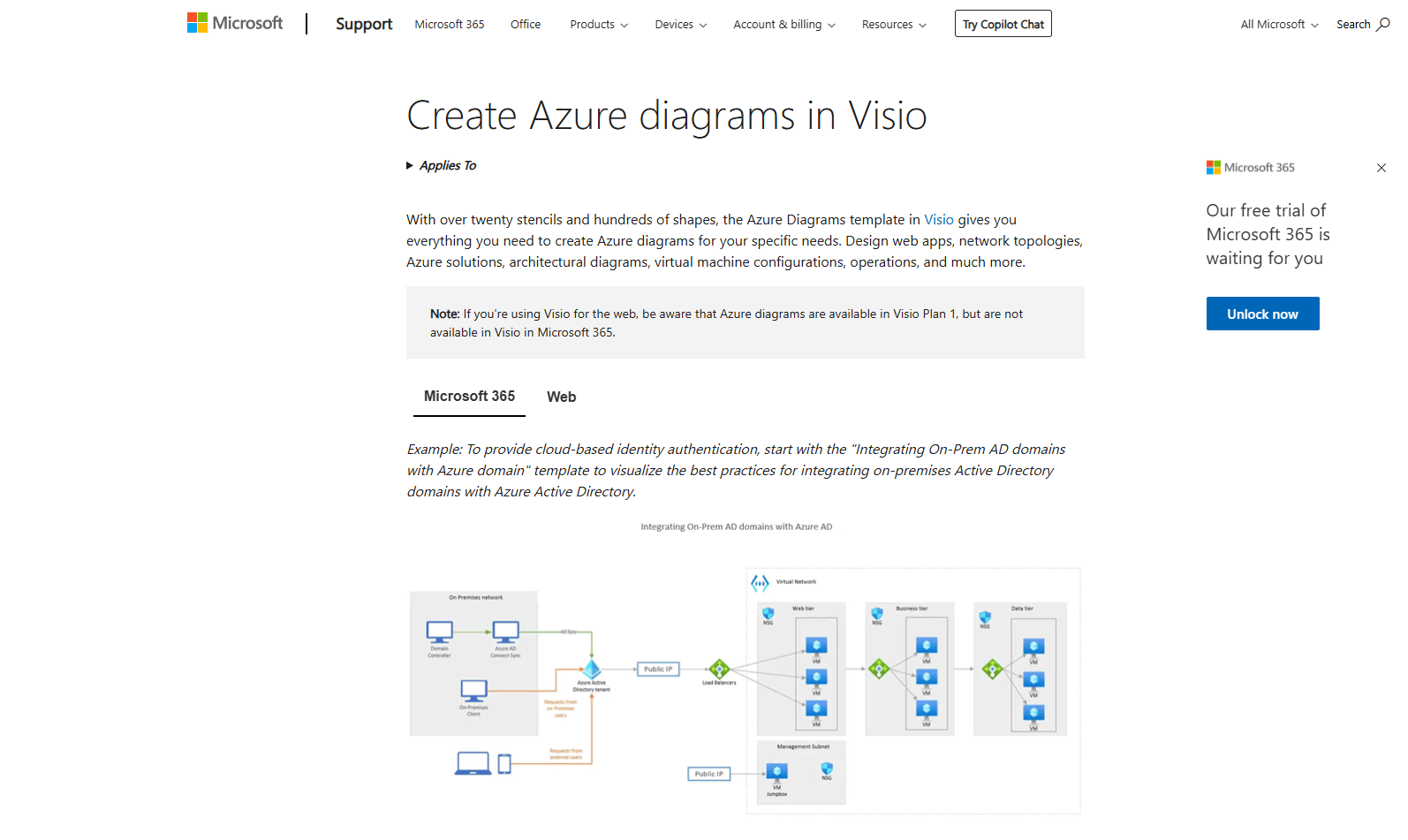
Visio is a popular Microsoft tool to draw professional diagrams. With its Azure template, you can build detailed Azure diagrams using official icons and symbols easily. However, Visio is software you have to pay for and it must be installed. But it works great.
6. Azure CLI and Azure PowerShell
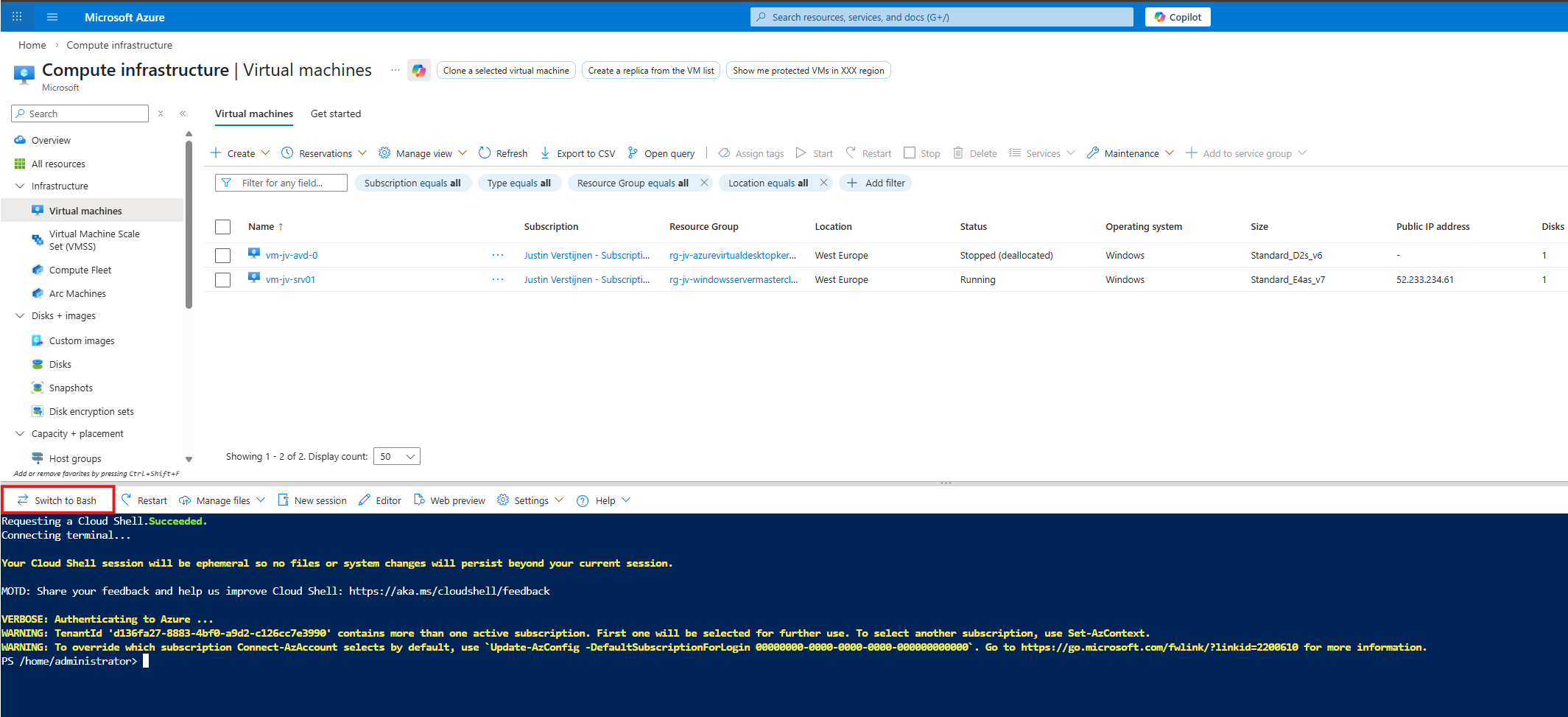
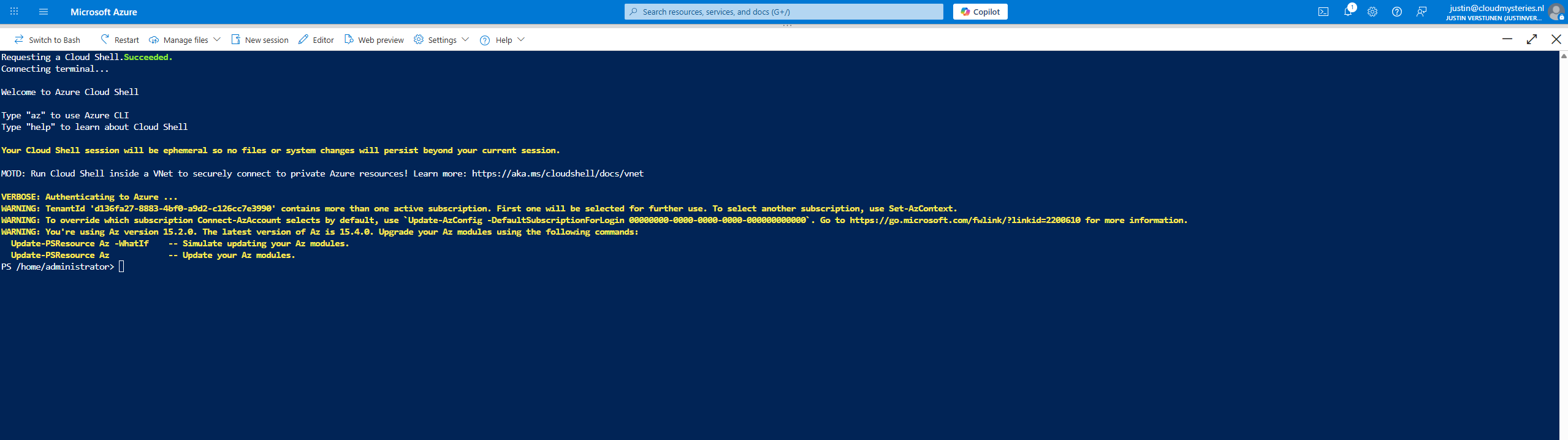
Azure CLI and PowerShell let you manage Azure using commands in a terminal. These tools are great for automation and managing resources faster than using the portal. We have the CLI and PowerShell directly in the Portal available using the “Cloud shell” button:
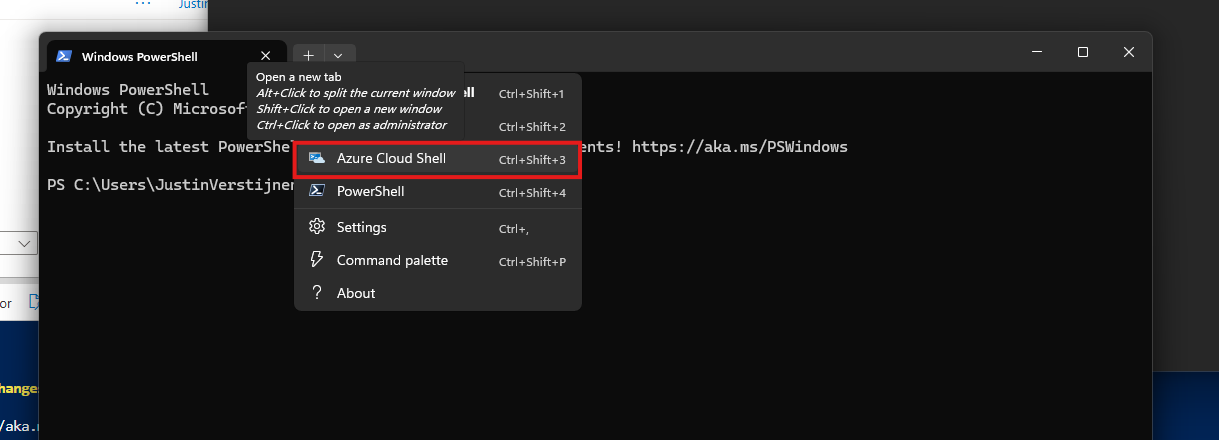
On Windows 11, you already have Azure CLI ready to use on your device. You only need to login to the tenant itself:
To use Azure PowerShell, you need to open PowerShell on your endpoint and install the needed modules:
Install-Module -Name Az.Accounts -Scope CurrentUser -AllowClobber -Force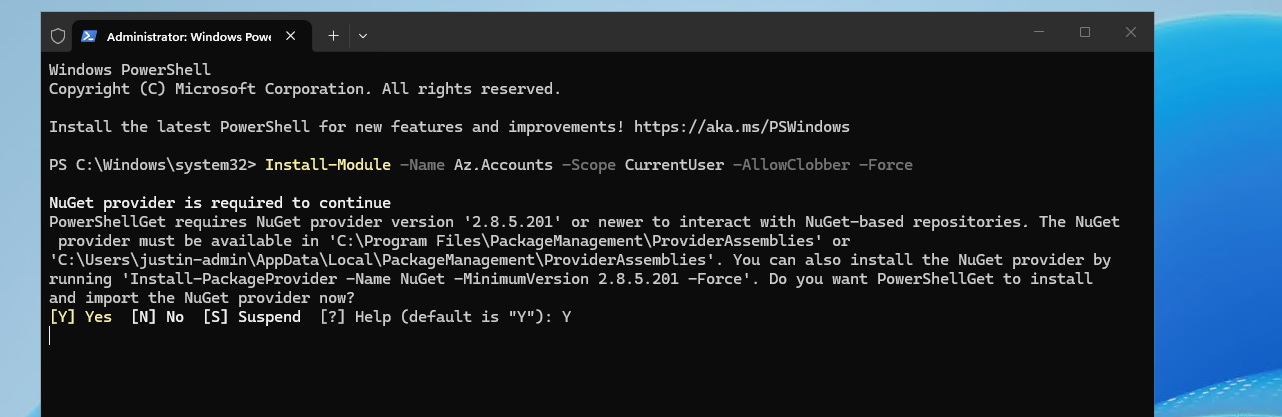
Then connect to your tenant using this command:
Connect-AzAccount7. Azure Cloud Shell
Cloud Shell is an online command-line environment you can use directly in your browser. It includes Azure CLI and PowerShell, so you don’t need to install anything locally. Very useful for fast tasks like deallocating a hung virtual machine or removing a resource that’s not visible in the Portal.
8. Azure Resource Indexer (ARI)
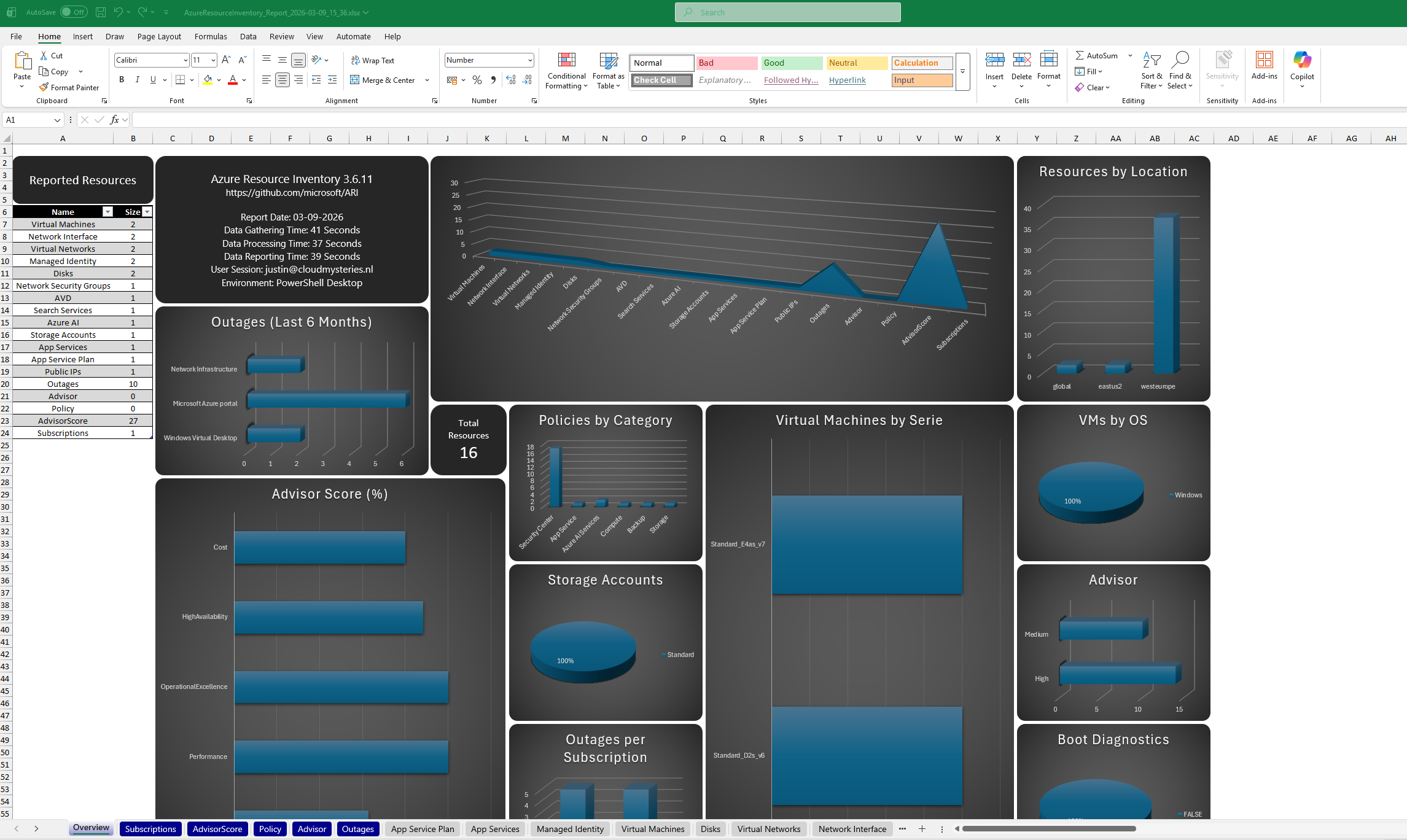
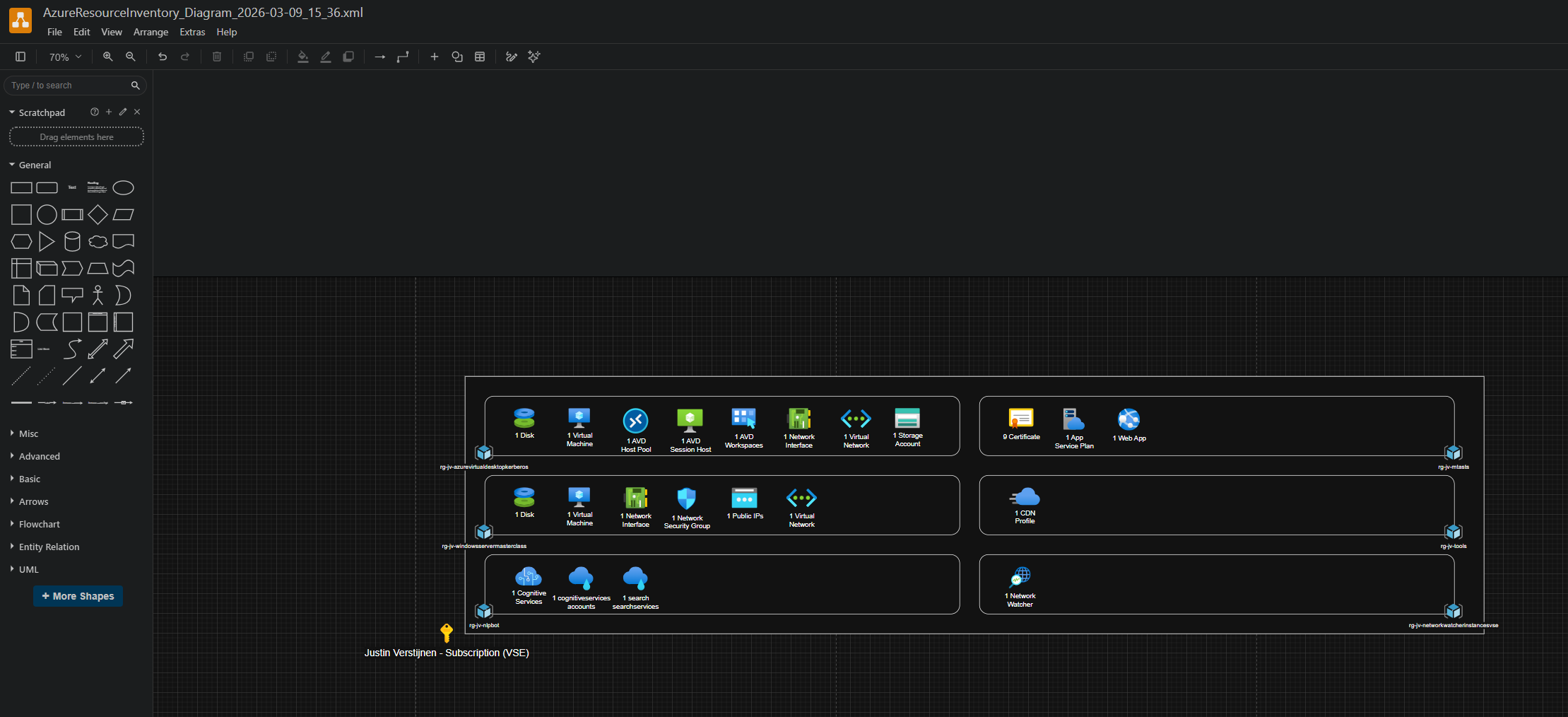
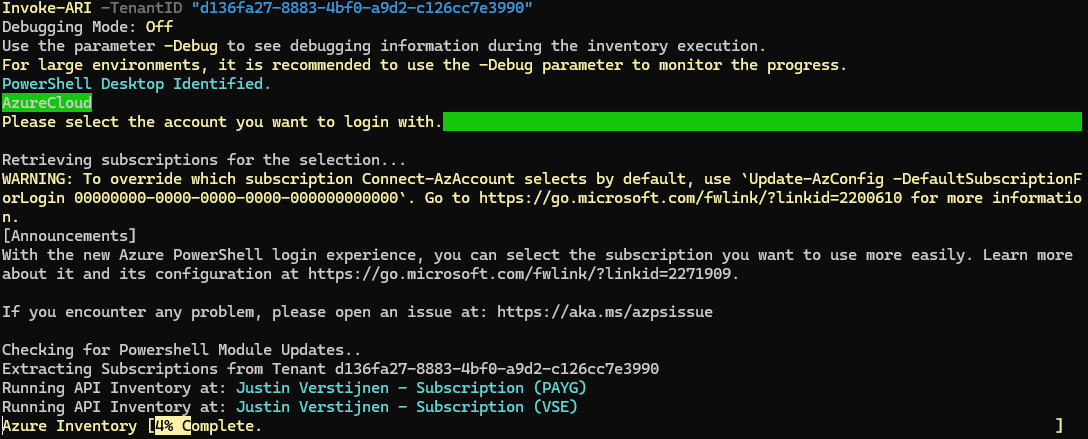
ARI is a tool from Microsoft on GitHub that helps find and visualize your Azure resources and their relations with each other. It is a useful to document your cloud setup or discover a new environment. It also has a export option to Draw.io, further helping you creating nice documentation.
https://github.com/microsoft/ARI
9. Microsoft Learn
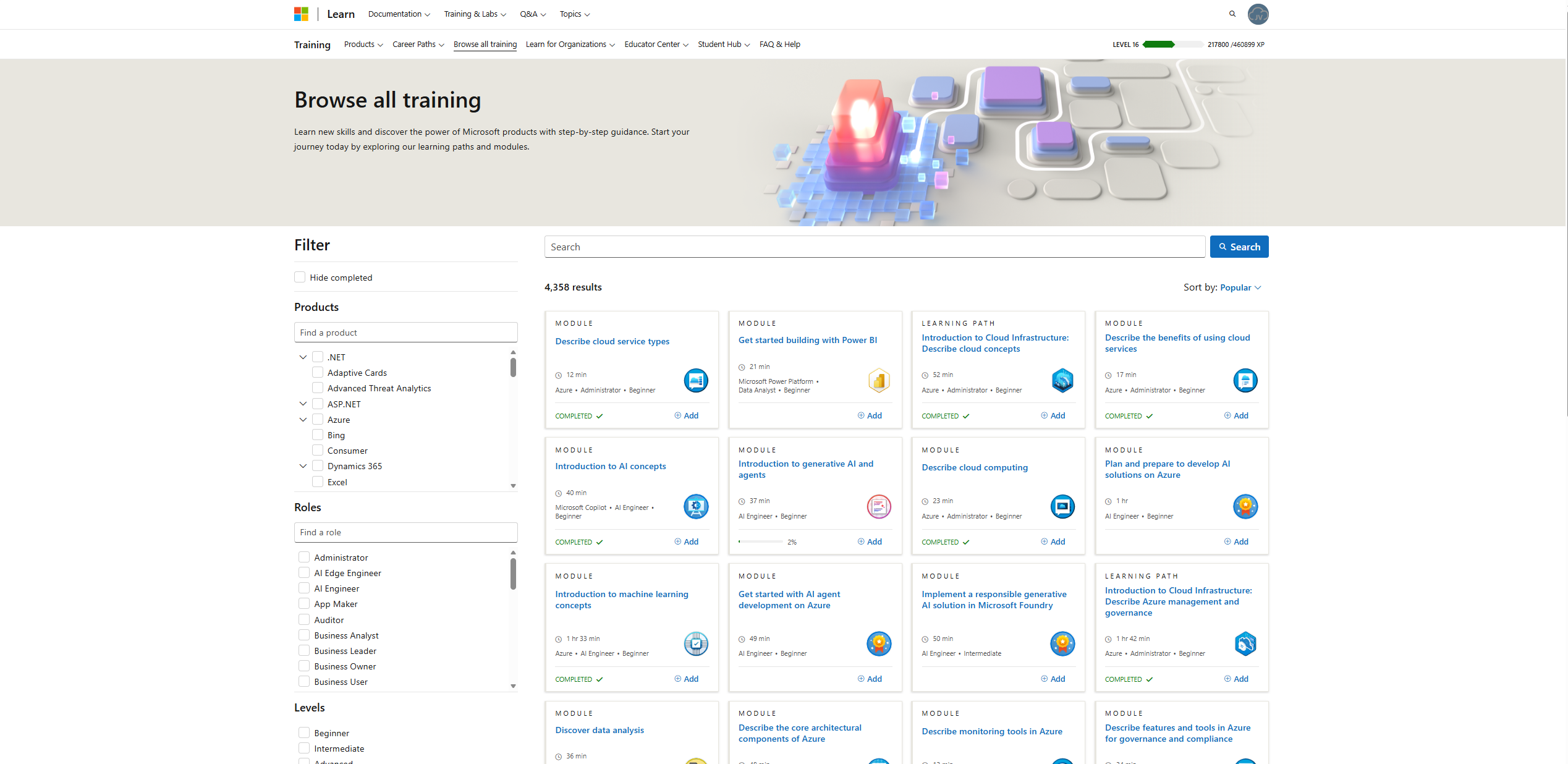
Microsoft Learn offers free, step-by-step learning paths for Azure and many other Microsoft products. It helps you build skills and to introduce you to the stuff needed to learn for a certification. It also contains a lot of Microsoft documentation like how PowerShell scripts and modules work or licensing requirements.
https://learn.microsoft.com/en-us/credentials/browse
https://learn.microsoft.com/en-us/credentials/browse/?credential_types=applied%20skills
10. Azure Governance Visualizer Accelerator
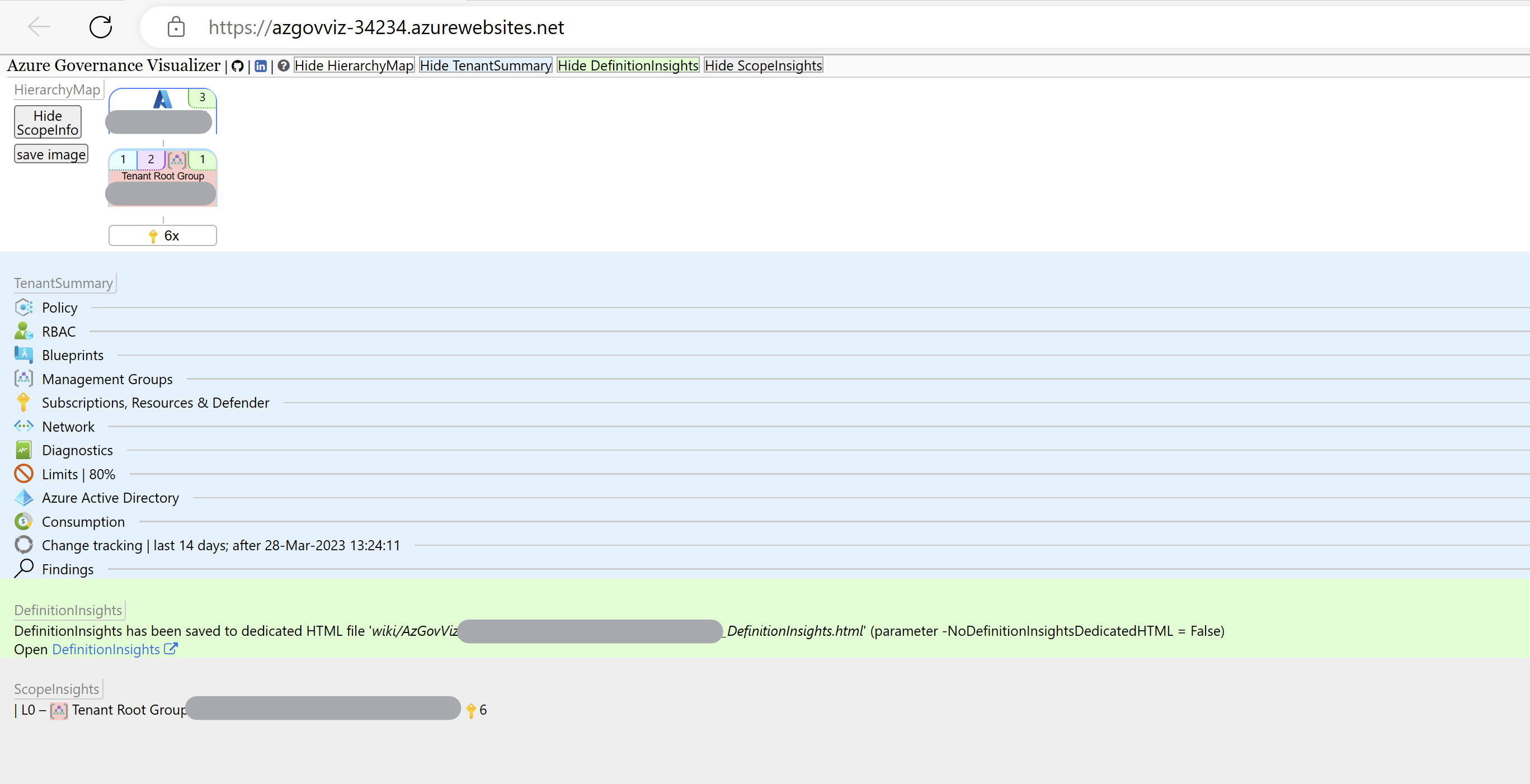
This is a comprehensive tool that helps you see and understand how governance policies affect your Azure environment. It shows things like resource access rules visually, helping keep your setup secure and compliant. The setup will take some time but is really useful.
https://github.com/Azure/Azure-Governance-Visualizer-Accelerator
Summary
These 10 tools cover many aspects of working with Azure and related services. From staying updated to managing costs, drawing diagrams, running commands, automating tasks and learning new skills. They all make cloud management easier and more efficient.
Thank you for reading this post and I hope it was helpful!
End of the page 🎉
You have reached the end of the page. You can navigate through other blog posts as well, share this post on X, LinkedIn and Reddit or return to the blog posts collection page. Thank you for visiting this post.
Support the blog
