Windows Search optimization on Azure Virtual Desktop
In this video you will see that it takes around 5 seconds till I can begin searching for applications and Windows didnt respond to the first click. This is on a empty session host, so in practice this is much slower.
How to solve this minor issue?
We can solve this issue by running a simple script on startup that opens the start menu, types in some dummy text and then closes. In my experience, the end user actually likes this because waiting on Windows Search the first time on crowded session hosts can take up to 3 times longer than my “empty host” example. I call it “a stupid fix for a stupid problem”.
I have a simple script that does this here:
Installing the script
Because it is a user-context script that runs on user sign in, I advice you to install this script using Group Policy or Microsoft Intune. I will show you how to do it with Group Policy. You can also store the script in your session host and run it with Task Scheduler.
Demonstration is done through the Local Group Policy editor, but it will work for both domain/non-domain group policy.
Place the script on a local or network location and open Group Policy Management, and then create a new GPO.
Go to User Configuration -> Windows Settings -> Scripts (Logon/Logoff)
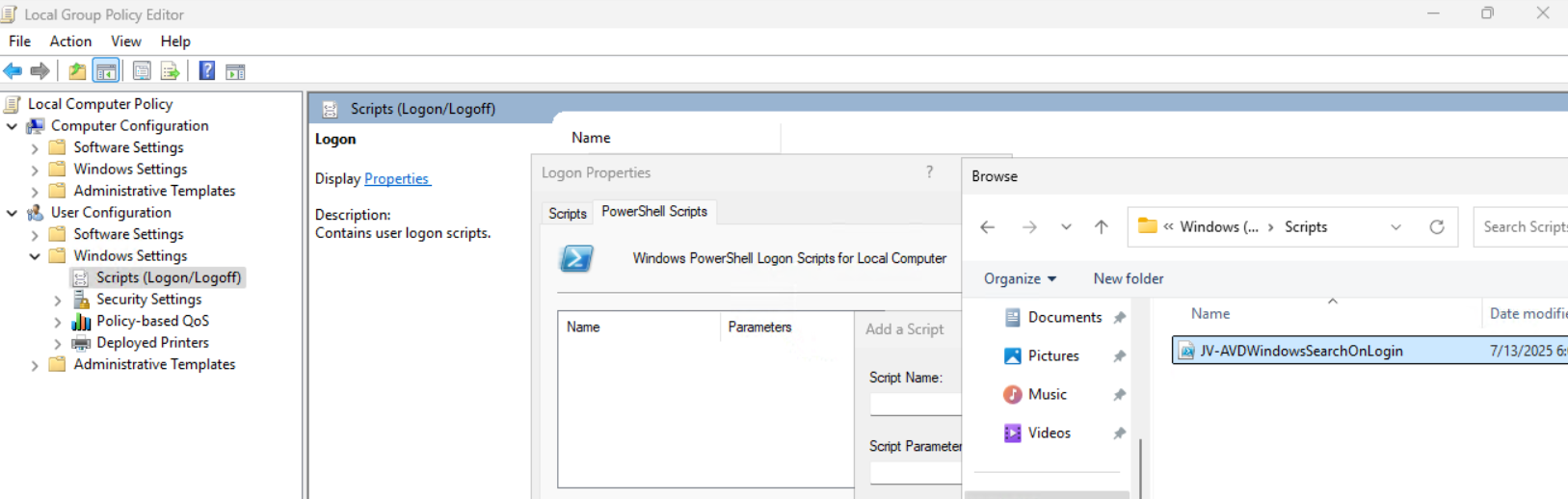
Then open the tab “Powershell Scripts” and select the downloaded script from my Github page.

Save the GPO and the script will run on startup.
Optimal Windows Search settings for Azure Virtual Desktop
Assuming you use FSLogix for the roaming profiles on non-persistent session hosts, I have the following optimizations for Windows Search here:
- FSLogix settings: EnableSearchIndexRoaming -> Disable
We don’t neccesarily need to roam our search index and history to other machines. This just disables it and our compute power completely goes to serve the end user with a faster desktop experience.
And we have some GPO settings for Windows Search here. I advice you to add this to your system optimizations:
Computer Configuration > Administrative Templates > Windows Components > Search
Set the settings to this for the best performance:
- Allow Cortana -> Disabled
- Do not allow web search -> Enabled*
- Don’t search the web or display web results in Search -> Enabled*

* Negative policy setting, enabled means disabling the option
Save the group policy and test it out.
Summary
The script might seem stupid but it’s the only way it works. I did a lot of research because some end users were waiting around 10 seconds before searching was actually possible. This is very time wasting and annoying for the end user.
For better optimization, I included some Group Policy settings for Windows and FSLogix to increase the performance there and get the most out of Azure Virtual Desktop.
Thank you for reading this post and I hope this was helpful.
These sources helped me by writing and research for this post;
End of the page 🎉
You have reached the end of the page. You can navigate through other blog posts as well, share this post on X, LinkedIn and Reddit or return to the blog posts collection page. Thank you for visiting this post.
Support the blog
