If you have the Office Apps installed with OneNote included, sometimes the OneNote printer will be installed as default:

This can be very annoying for our end users and ourselves as we want real printers to be the default printer. Today I will show you how to delete this printer for current and new session hosts permanently.
Table of Contents
📖 Estimated read time: 3 minutes
🔄 Page last updated on: August 11, 2025 🆔 Post ID: 4308The issue itself
The issue is that OneNote automatically creates a printer queue in Windows at installation for users to send information to OneNote. This will be something they use sometimes, but a physical printer will be used much more often. The most annoying part is that the software printer for OneNote will be marked as default printer every day which is annoying for the end users.
Advance through this page to see how I solved this problem many times, as our users don’t use the OneNote printer. Why keeping something as we don’t use it.
My solution
My solution to fix this problem is to create a delete-printer rule with Group Policy Printers. These are very great as they will remove the printer now, but also if we roll out new session hosts in a few months. This will be a permanent fix until we delete the GPO.
Create a new Group Policy Object at yourt Active Directory Management server:

Choose “Create a GPO in this domain and Link it here…” or use your existing printers-GPO if applicable. The GPO must target users using the Azure Virtual Desktop environment.
Navigate to User Configuration -> Preferences -> Control Panel Settings -> Printers

Right-click on the empty space and select New -> Local Printer

The select “Delete” as action and type in exactly the name of the printer to be deleted, in this case:
OneNote (Desktop)Just like below:
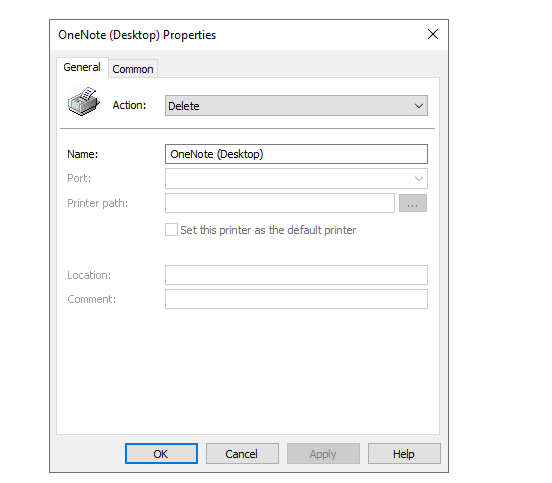
Click OK and check the settings for the last time:

Now we are done and at the next login or Group Policy refresh interval, the OneNote printer will be completely deleted from the users’ printers list.
Summary
This is a very strange thing to happen but a relatively easy solution. I also tried deleting the printer through registery keys but this was very hard without success. Then I though of a better and easier solution as most deployments still need Active Directory.
Thank you for reading this guide and I hope it was helpful.
Sources
These sources helped me by writing and research for this post;
End of the page 🎉
You have reached the end of the page. You can select a category, share this post on X, LinkedIn and Reddit or return to the blog posts collection page. Thank you for visiting this post.
- Azure Master Class (12)
- Azure Virtual Desktop (20)
- Flying (16)
- Intune (5)
- Microsoft 365 (12)
- Microsoft Azure (30)
- Microsoft Defender XDR (4)
- Microsoft Entra (10)
- Networking (5)
- Powershell (20)
- Uncategorized (1)
- Windows 365 (3)
- Windows Server (14)
If you think something is wrong with this post or you want to know more, you can send me a message to one of my social profiles at: https://justinverstijnen.nl/about/
The terms and conditions apply to this post.
Page visitors: No page-counter data available yet.


0 Comments